A campaign sits ready to go. The bot is built, the audience is segmented, the copy is signed off. You submit the message template in Meta Business Manager and walk away to make tea. Come back two hours later, refresh the dashboard: Rejected. Reason given, in full: “Template did not meet our guidelines.”
Thanks, Meta.
You read the template five times trying to spot what’s wrong. Tweak a comma. Change “offer” to “update”. Re-submit. Rejected. Tweak again. Rejected. Three days disappear, the campaign window is half gone, and the team is asking what’s going on.
Anyone who’s run WhatsApp Business at any meaningful scale in India has lived through this — usually three or four times before the patterns start clicking. The good news: almost every rejection follows a small set of rules. Once you can see them, the approval rate goes from coin-flip to near-certain.
This is the whole playbook. What a template actually is, the three categories, the anatomy, real examples that pass review, the ten patterns that kill templates. If you’re new to WhatsApp automation overall, the complete guide to WhatsApp automation for business is the better place to start.
Why WhatsApp Requires Templates At All
WhatsApp doesn’t want to become the SMS inbox of 2008. To keep that from happening, Meta enforces a rule called the 24-hour customer service window: once a user messages you, you can reply freely for 24 hours. After that, or if you’re starting a conversation cold, the message has to come from a pre-approved template — a format Meta has read, reviewed, and waved through.
A template is just a message with fixed wording, optional variables ({{1}}, {{2}}) for the parts that change per recipient, and a category label. Once it’s approved, you can send it to any user who’s opted in to messages from your business.
The flip side of this design: everything outbound depends on it. Welcome messages, order updates, appointment reminders, festive offers, OTPs — every single one is a template waiting to be approved.
The Three Template Categories (And Why They Matter)
Every template is filed under one of three categories at submission: Utility, Marketing, or Authentication. Get this wrong and the rejection is automatic — no amount of wording fixes will save it.
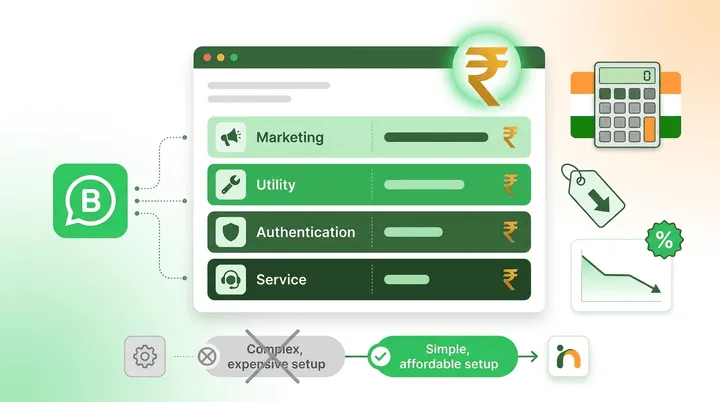
(You might come across a fourth label, Service, in pricing tables. That’s a billing category, not a template type. Service conversations happen when a customer messages you first — you reply for free inside the 24-hour window. No template needed, nothing to submit.)
1. Utility
Utility carries transactional information the user expects. The mental test: would the customer think “of course they should tell me this”? If yes, it’s utility. Typical:
- Appointment confirmations and reminders
- Order placed, shipped, delivered, returned
- Account balance, statement, payment received
- Booking changes, cancellations, rescheduling notifications
- Service completion (“vehicle ready for pickup”, “lab report available”)
2. Marketing
Marketing pushes a new action the user hadn’t already started. They’re opted in to hear from you in general, but they didn’t sign up for this specific message. Includes:
- New product launches
- Seasonal offers, discount codes
- Re-engagement messages (“we miss you”)
- Cross-sell and upsell prompts
- Newsletter-style content
- Event invitations
If the goal is to drive a new action, it’s marketing.
3. Authentication
OTPs and verification codes. Tight format, limited customisation — Meta hands you the base structure and you choose between a few small variants. You cannot send custom OTP-style messages outside the auth template type.
- Login OTP
- Password reset code
- Two-factor authentication code
- Account verification PIN
Why category matters for cost
In India, Meta charges different rates per conversation depending on category. Authentication and utility sit at the lower end (around ₹0.14 per conversation at the time of writing), while marketing is several times higher (around ₹0.78). Rates shift every few quarters — our WhatsApp Business API pricing in India guide tracks the live numbers and worked examples.
The practical implication: marketing conversations cost roughly 5–6× more than utility. If a utility-style message (say, an appointment confirmation) is submitted as marketing, you’ll pay 5× more per send for the same content. If a marketing message sneaks through as utility, Meta usually catches it on review. When they don’t, the phone number’s quality rating quietly takes a hit and you find out later. Either way, picking the right category is both a compliance call and a cost call.
The Anatomy of a Template
Every template has up to five parts. Only the body is mandatory; the others are optional but pull a lot of weight when used well.
Header (optional)
One per template. Type locked at submission. The choices:
- Text — up to 60 characters, one variable allowed
- Image — JPG or PNG, useful for visual confirmations
- Video — short clip
- Document — PDF, good for invoices, tickets, lab reports
- Location — coordinates pinned on a map
Body (required)
The actual message. Up to 1,024 characters. Variables for whatever changes per recipient. This is where Meta’s reviewers spend most of their attention, and almost every rejection traces back to something in the body.
Footer (optional)
Up to 60 characters at the bottom of the message. No variables. Most teams use it for an opt-out line (“Reply STOP to unsubscribe”) or a small brand attribution.
Buttons (optional)
Four button types. Per-type ceilings have moved a couple of times — current limits are roughly:
- Quick Reply — tappable button that sends a fixed reply back. Up to 3 per template in most accounts.
- URL — opens a link. Can carry a variable in the URL for personalisation. Up to 2.
- Phone Number — initiates a call. One per template.
- Copy Code — auth templates only; auto-copies the OTP to the clipboard.
Buttons dramatically lift engagement. A user who can tap “Confirm” never has to type “yes” — and never gets distracted halfway through.
Language
Templates are submitted per language code: en, en_US, hi, mr, ta, and so on. The codes are not interchangeable. en and en_US look identical but Meta treats them as separate templates, and sending one with the wrong code returns an error. If your audience also reads Hindi, submit a fresh Hindi version. It gets its own review and its own approval.
Real Approved Examples (Copy These)
Reading approved templates is the fastest way to internalise what passes. A few realistic ones:
Utility example: Appointment reminder
Body: Hi {{1}}, this is a reminder for your appointment with Dr. {{2}} tomorrow at {{3}}. Please arrive 10 minutes early and bring any previous reports.
Reply RESCHEDULE if you need to change the slot.
Buttons: Quick Reply: “Confirm” Quick Reply: “Reschedule”
Sails through utility review. No promotional language. Clear transactional intent. Variables sit mid-sentence. The buttons feel helpful, not pushy.
Marketing example: Re-engagement
Header (image): Branded image showing the product range Body: Hi {{1}}, we noticed you haven’t visited us in a while! As a thank you, here’s a 15% off coupon valid until {{2}}: use code {{3}} on your next visit.
See our latest collection at the link below.
Footer: Reply STOP to opt out. Buttons: URL: “Shop now” (opens your store) Quick Reply: “Show me more”
Clearly marketing — promotional intent, discount, push to act. The STOP footer signals compliance to reviewers. Variables sit cleanly between fixed words.
Authentication example: OTP
Body: {{1}} is your verification code. For your security, do not share this code with anyone.
Buttons: Copy Code (button auto-copies the OTP)
Auth templates are tight. Meta hands you the base format and you choose between a few small variants. Don’t try to be creative here — there isn’t room to be.
Don't want to deal with template submissions yourself?
Inceptimind handles WhatsApp template drafting, category selection, and Meta submission as part of onboarding. We've seen what gets approved and what doesn't — your first templates clear on attempt one. Plans start at just ₹399/mo.
Get a Free DemoThe 10 Most Common Reasons Templates Get Rejected
Learn these ten patterns and your rejection rate drops to almost nothing.
1. Promotional content slipped into a Utility template. The single most common mistake. The moment your message mentions a discount, sale, new product, or “limited offer”, it’s marketing — even if the rest is a legitimate order update. “Your order is on the way! Plus get 20% off your next purchase” — that second sentence flips the whole template into marketing territory.
2. Variables at the very start or end of the body. A template that opens with {{1}} (“Anjali, your order is confirmed”) or closes with one (“Your delivery slot: {{1}}”) gets auto-flagged. Reviewers can’t tell from your example what the final message will read like. Lead with a fixed word — “Hi {{1}}, your order…” — and end with one too.
3. Two variables in a row. {{1}} {{2}} separated by nothing but a space. Meta has no way to confirm those aren’t placeholder garbage. Same fix: put fixed text between them.
4. Useless placeholder examples. When you submit, you provide example values for each variable. If your example for {{1}} is “Test”, “Name”, or “asdf”, reviewers assume the template is a spam draft. Use realistic values — “Anjali Sharma”, “ORD-2026-4892”, “Dr. Mehta”. A human reads them.
5. Hidden formatting issues. Trailing spaces, extra tabs, multiple consecutive newlines. Invisible to you, visible to the parser. Drop the text through a plain-text editor (Notepad — not Word) before submission and strip anything odd.
6. URL shorteners. Bit.ly, t.co, anything that hides the actual destination. Reviewers can’t see where the link goes, so they assume the worst. Use full canonical URLs to your own domain.
7. Fear-based urgency. “Your account will be deleted in 24 hours!” “Last chance ever!” “Act now or lose everything!” Reviewers flag this as scam-style language even when the underlying message is legitimate. Soften.
8. Prohibited industries or content. Real-money gambling, adult content, drugs, weapons, certain financial products — Meta has a list, and templates in these categories get rejected outright regardless of wording. If you’re in a borderline space, read Meta’s restricted-products policy before drafting anything.
9. Language code vs content mismatch. Submitted as en but the body is in Hindi (or the reverse). Meta checks. Always.
10. Buttons that contradict the message. A “Buy Now” URL button on what’s supposed to be an appointment reminder confuses reviewers — and signals “marketing dressed up as utility”. Buttons should reinforce the message’s intent, not pivot away from it.
How to Submit a Template — Step by Step
Submission itself is the easy part once the draft is solid.
- Open Meta Business Manager → WhatsApp Manager.
- Message Templates → “Create Template”.
- Pick a category. Utility, Marketing, or Authentication.
- Pick a language. Submit a separate template per language code your audience uses.
- Name the template. Lowercase letters, numbers, underscores. No spaces. Examples:
appointment_reminder_v1,cart_recovery_offer. Pick names your team can read six months from now. - Build the template — header, body, footer, buttons.
- Provide realistic example values for every variable. This is the step most rushed submissions get wrong.
- Submit for review. Meta usually responds within minutes to a few hours.
What the statuses actually mean
- Approved — live. Start sending.
- Rejected — fix the issue and re-submit a fresh template (or use the “edit and resubmit” flow if Meta offers it for that template).
- In Review — still under review. If it sits there longer than 48 hours, delete and re-submit a copy. The queue gets stuck sometimes.
- Disabled — Meta paused the template post-launch, usually because users blocked or reported it at a high rate. Rewrite it.
- Flagged — Meta has questions but hasn’t decided. Usually clears one way or the other within 24 hours.
Managing Templates After Approval
Approved templates aren’t set-and-forget.
Editing approved templates
Body, footer, and buttons can be edited. Each edit pushes the template back into review. The name, language, and category are locked at creation; for those, you’d create a new template. Meta caps how many times a single template can be edited — currently around 10 edits in a rolling 30-day window, though the cap has moved before. Use edits for real copy improvements, not running A/B tests.
Quality rating
Meta tracks a quality rating per phone number — Green, Yellow, Red. It’s a live measure of how users react to your messages. High block and report rates pull it down. Consistent engagement keeps it up. A Red rating drops your sending limits and starts auto-rejecting new template submissions. The principle is brutal but fair: send only what users would actually want to receive.
Deleting templates
Delete templates you no longer use. The name is locked for a cooldown period (around 30 days at the time of writing) before you can re-use it. Keep the library tidy — clutter makes future audits and category strategy harder than they need to be.
Strategic Tips for Indian Businesses
Things that matter specifically for the Indian market:
Submit in two languages from day one. Most Indian customers code-switch — opening in English, dropping into Hindi when the topic gets specific. If you only have English templates, you’re working against how people actually message. Submit a Hindi version of every key template. If you have a regional concentration, add Marathi, Tamil, Telugu, or Bengali too.
Earn the right to send marketing. A new WhatsApp Business number starts with a low daily messaging limit. Run utility templates for the first couple of weeks — higher engagement, lower block rates, which boosts your quality rating fast. Once you’ve sat at solid Green for a while, scaling marketing becomes safer.
Have a follow-up template ready before you run ads. If you’re driving traffic with click-to-WhatsApp ads, you can reply free for 72 hours — but to re-message a lead after that window you need an approved template. Submit a utility follow-up template before the campaign launches, not after a lead has gone cold.
Approved templates are only one of three broadcast requirements. A marketing template that passes review still needs opted-in recipients and a healthy quality rating behind it, or the sends that follow will hurt the number. Our guide to sending WhatsApp broadcast messages without getting banned covers the other two.
The five templates every service business needs. Clinic, salon, real estate office, fitness studio, dental practice — the same five templates cover 90% of customer communication:
- Welcome / introduction
- Appointment confirmation
- Appointment reminder (24 hours before)
- Reschedule confirmation
- Cancellation acknowledgement
Each takes about five minutes to draft and clears review within an hour. They power your appointment booking chatbot end-to-end.
Pick a naming convention early. Once you cross 30+ templates across categories and languages, descriptive names save real time. A format like <category>_<purpose>_<version> works well: utility_appt_reminder_v1, marketing_diwali_offer_v1. You’ll thank yourself in six months.
Don’t submit a wave of marketing templates on day one. Ten marketing templates from a fresh number, all in one go, flags Meta’s anti-spam systems. Stagger them. Utility first to build the quality rating, then marketing in twos and threes over the next couple of weeks.
Things People Regularly Get Wrong
- “I can just edit my template after it’s rejected.” No. Rejected templates aren’t edited. You submit a fresh one. Edits only apply post-approval.
- “More variables = more flexibility.” Wrong direction. More variables means more rejection risk. Use the minimum number you need. Some of the best-performing templates have a single variable — the recipient’s name.
- “Emojis cause more rejections.” False. Emojis are fine when they support the message. Don’t pile on ten of them.
- “WhatsApp’s free Business app supports templates.” It doesn’t. Only the WhatsApp Business API supports templates. The free app is for manual replies. If you need templates, you need API access via a Business Solution Provider.
A Practical Roadmap to Get Started
If you’re standing at the start of this, the order that consistently works:
- List your top 5 use cases. Welcome, confirmation, reminder, follow-up, offer. Be specific about who sends what and when.
- Pick the right category for each. Walk through the utility-vs-marketing distinction above. Unsure? Default to utility — easier to approve, cheaper per send.
- Draft all 5 in plain text first. Tighten the wording. Place variables mid-sentence. Use realistic examples.
- Submit one at a time, over a couple of days. Not all at once.
- Read every rejection. Each one teaches you something about how reviewers think. Patch the issue and re-submit.
- Once approved, test send to your own number. Confirm the variables substitute correctly and the buttons work end-to-end before scaling.
If this all sounds like more friction than you want to deal with, drop us a line. Template drafting, category strategy, and Meta submission are part of Inceptimind’s onboarding for every new customer. The first batch typically goes from idea to approved in hours, not days.
The teams that do well on WhatsApp aren’t the ones with the longest template library. They’re the ones with the right templates — clear, useful, properly categorised, consistent in voice. Get that foundation right and everything downstream (appointment booking, reminders, lead capture, broadcasts) runs on top of it without drama.