Look up how to put WhatsApp on a website and you mostly get shown things to sign up for: a widget with a dashboard, a plugin with its own settings page, sometimes a free plan that stays free only while someone else’s name sits under your chat bubble.
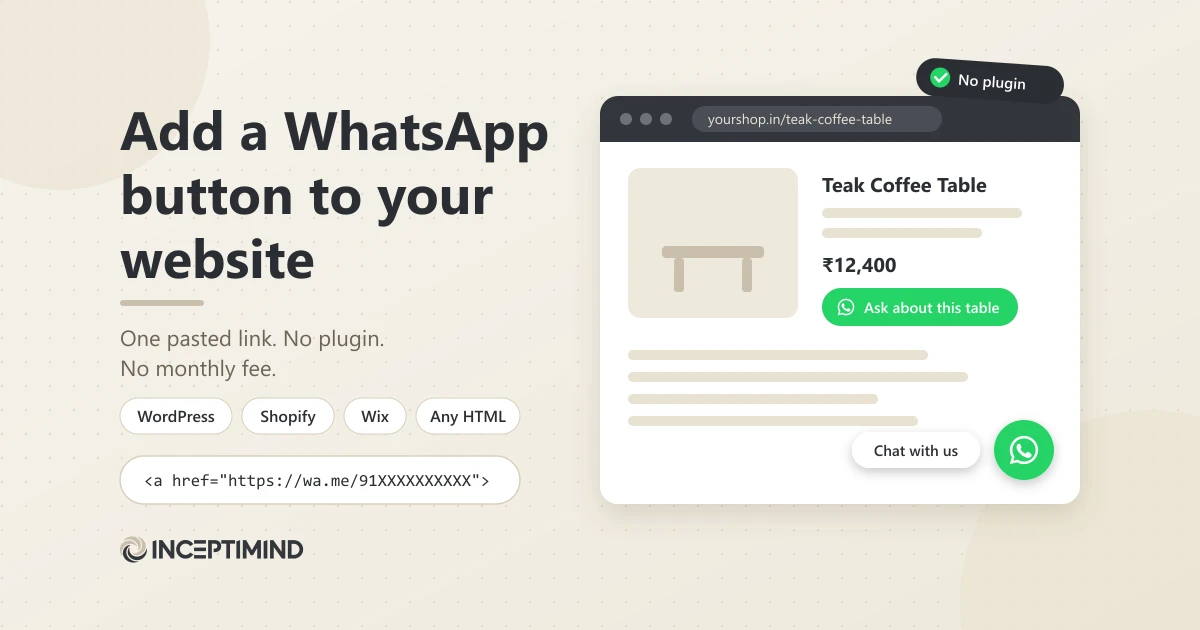
You can skip all of that. A WhatsApp chat button is an ordinary link, the same kind as the one to your About page, except that it points at WhatsApp. You can paste it in yourself in a few minutes, and after that there’s nothing to renew or update.
The code is further down, along with where to paste it on WordPress, Shopify, Wix, Squarespace, Webflow and sites you’ve built by hand. If you’d rather not touch code at all, the Website tab of our free WhatsApp link generator writes it out with your number already in it.
The Whole Button Is One Link
Every WhatsApp number has a click-to-chat address, and it looks like this:
https://wa.me/91XXXXXXXXXXSo that’s wa.me/, the country code (91 for India), then the ten-digit number, all run together. Leave out the plus sign, any spaces and the leading zero. On a phone the link opens WhatsApp straight into a chat with that number. On a laptop it opens WhatsApp Web.
To turn the address into a button, you put it inside a normal HTML link:
<a href="https://wa.me/91XXXXXXXXXX?text=Hi%2C%20I%20have%20a%20question"
   target="_blank" rel="noopener"
   style="display:inline-flex;align-items:center;padding:10px 18px;border-radius:999px;background:#25d366;color:#fff;font:600 15px/1 system-ui,sans-serif;text-decoration:none">
  Chat on WhatsApp
</a>
If you’ve never read HTML before, that link has four parts:
hrefis where the link goes. Whatever comes after?text=shows up in the visitor’s chat box as a ready-typed message. The%20and%2Care just how a link spells a space and a comma.target="_blank"opens WhatsApp in a new tab, which keeps your site open behind it.rel="noopener"is a routine safety measure for links that open new tabs. Leave it in.styleis what makes it a green pill. Changebackgroundfor a different colour, or delete the attribute entirely and you get a plain text link that works exactly the same way.
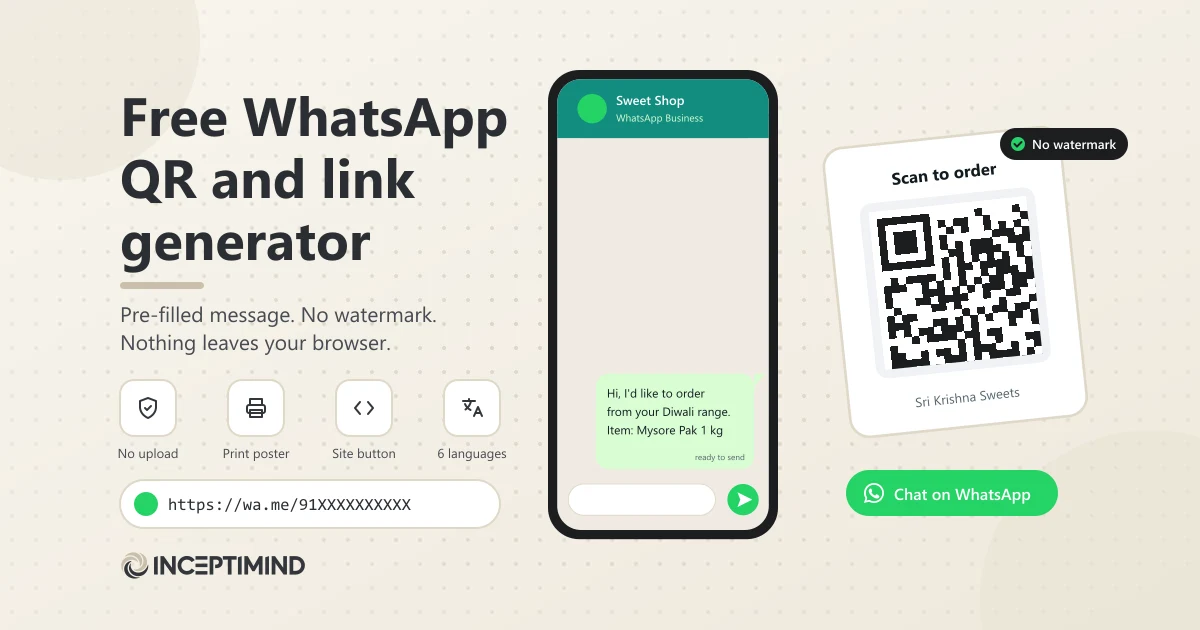
The link loads no script and needs no account. For more on wa.me links, pre-filled messages and QR codes, see the guide to the free WhatsApp QR code and link generator.
Three Shapes: Inline Button, Floating Bubble, Text Link
There are three ways to put that link on a page, and most sites settle on two of them.
The inline button goes in the page content, at the spot where someone is making up their mind: under a product description, next to a price, at the bottom of a service page. That’s the code you just saw. Do change the label, though. On a clothing page, “Ask about sizes” tells the visitor far more than a generic “Chat on WhatsApp”, and a fabrication shop is better off with “Get a quote”.
The floating bubble is the round green icon you’ve seen in the bottom-right corner of other people’s sites. It’s the same link with different styling:
<!-- Paste just before </body>. Sits bottom-right on every page. -->
<a href="https://wa.me/91XXXXXXXXXX?text=Hi%2C%20I%20have%20a%20question"
   target="_blank" rel="noopener" aria-label="Chat on WhatsApp"
   style="position:fixed;right:20px;bottom:20px;z-index:9999;display:flex;align-items:center;justify-content:center;width:56px;height:56px;border-radius:50%;background:#25d366;color:#fff;box-shadow:0 4px 14px rgba(0,0,0,.25);text-decoration:none">
  <svg viewBox="0 0 24 24" width="30" height="30" fill="currentColor" aria-hidden="true"><path d="M12 2a10 10 0 0 0-8.6 15.1L2 22l5-1.3A10 10 0 1 0 12 2zm0 18.2a8.2 8.2 0 0 1-4.2-1.2l-.3-.2-3 .8.8-2.9-.2-.3A8.2 8.2 0 1 1 12 20.2zm4.5-6.1c-.2-.1-1.5-.7-1.7-.8-.2-.1-.4-.1-.6.1-.2.2-.6.8-.8 1-.1.2-.3.2-.5.1-.2-.1-1-.4-2-1.2-.7-.7-1.2-1.5-1.4-1.7-.1-.2 0-.4.1-.5l.4-.4.2-.4v-.5l-.8-1.8c-.2-.5-.4-.4-.6-.4h-.5c-.2 0-.5.1-.7.3-.2.3-.9.9-.9 2.2s1 2.6 1.1 2.7c.1.2 1.9 2.9 4.6 4 .6.3 1.1.4 1.5.6.6.2 1.2.2 1.6.1.5-.1 1.5-.6 1.7-1.2.2-.6.2-1.1.1-1.2 0-.1-.2-.2-.5-.3z"/></svg>
</a>
position:fixed is what pins it to the screen. right and bottom control how far it sits from the corner, and z-index keeps it on top of everything else. Don’t drop the aria-label. The bubble has no visible text, so that label is the only thing a screen reader has to announce.
The plain text link is for anywhere a button would look out of place, like a line in an FAQ answer (“or message us on WhatsApp”), the footer, or next to the phone number in your header. It uses the same href with no styling.
If you’re not sure which to use, put the bubble on every page and add an inline button to the two or three pages where people tend to stall.
Where the Code Goes, Platform by Platform
Every site builder has somewhere to put custom HTML. The menu names do get shuffled around, so if something below isn’t where we say it is, search that platform’s help pages for “custom code”.
WordPress
For an inline button, edit the page, add a Custom HTML block, paste the button code, and preview before you update.
The bubble has to go somewhere that loads on every page, and where that is depends on your theme:
- Block themes (you’ll have a Site Editor under Appearance): open the Footer template part, add a Custom HTML block at the end and paste the bubble code. The bubble is pinned to the screen anyway, so its position inside the footer makes no difference.
- Classic themes: go to Appearance, then Widgets, add a Custom HTML widget to any footer area and paste it there.
Neither route needs a plugin. The exception is a theme with no footer template and no footer widget area. There, a small header-and-footer code plugin is a fair way to get the code in.
Shopify
For the bubble, go to Online Store, then Themes, click the three-dot menu on your live theme and choose Edit code. Open layout/theme.liquid, scroll right to the bottom and paste the bubble code on the line above </body>, then save. If you’ve never edited theme code, duplicate the theme first. It’s one click, and it means you can always go back.
An inline button on product pages doesn’t need the code editor at all. Open a product page in the theme customiser, add a Custom Liquid block where the button should go, and paste the button code into it.
In that block, Liquid (Shopify’s template language) can also write the product’s name into the message, so every product page gets its own message without any extra work from you:
<a href="https://wa.me/91XXXXXXXXXX?text={{ 'Hi, I have a question about ' | append: product.title | url_encode | replace: '+', '%20' }}"
   target="_blank" rel="noopener">Ask about this on WhatsApp</a>
Someone looking at a teak coffee table taps the button, and the chat opens with “Hi, I have a question about Teak Coffee Table” already typed, so you know which product they mean before you reply.
Wix
For an inline button, add an Embed HTML element from the Add menu, choose to enter code and paste the button code in. You may need to resize the box so the button isn’t clipped.
The bubble is harder. It needs site-wide custom code, which Wix keeps under Settings, then Custom Code, where you can set it to load at the end of the body on all pages. That feature is only on paid plans with a connected domain. Don’t try the Embed HTML element for the bubble: Wix puts embedded code inside a frame, so the bubble ends up fixed to that frame instead of the screen.
Squarespace
For an inline button, add a Code block to the page and paste the button code.
The bubble goes in Code Injection in the site settings, in the Footer field. Only some paid plans include code injection, so check whether yours does. If it doesn’t, an inline button in the site footer is the next best thing.
Webflow
Drop an Embed element onto the page for an inline button. For the bubble, open the site settings, find Custom Code and paste it into the Footer Code field. You’ll need a paid site plan for custom code, and it only shows up on the published site, so don’t worry when the designer preview looks empty.
Blogger and Google Sites
On Blogger, go to Layout, add an HTML/JavaScript gadget and paste whichever version you want. Google Sites has an Embed option that takes the button code, but it frames it the way Wix does, so stick to the inline button there.
A Hand-Built Site, React or Next.js
On a plain HTML site, paste the bubble above </body> in whatever footer or layout file your pages share.
React and Next.js have one catch: JSX won’t take style as a text string. Move the styles into a CSS class, as below, or rewrite them as a style object:
<a
  href="https://wa.me/91XXXXXXXXXX?text=Hi%2C%20I%20have%20a%20question"
  target="_blank"
  rel="noopener"
  aria-label="Chat on WhatsApp"
  className="wa-bubble"
>
  {/* icon */}
</a>
Put it in the root layout so it renders once for every route. And if the message comes from a variable, run it through encodeURIComponent first.
One Message Per Page
Most people set the pre-filled message to a generic “Hi” and never think about it again. But the message is part of the link, so each page can have its own:
| Page | Message the visitor sends |
|---|---|
| Home | Hi, I’m on your website and have a question |
| Pricing | Hi, I’d like help choosing a plan |
| A product page | Hi, I have a question about [product name] |
| Contact | Hi, I’d like to speak to someone about |
| Order tracking | Hi, I’d like an update on order number |
A chat that opens with “Hi, I’d like help choosing a plan” has already told you which page the person was on and what was on their mind, and you didn’t need a tracking script to find out.
A few things we’d suggest when you write them:
- Write it as the visitor. It’s their message, sent in their name. “Hello, I’d like to book a visit” sounds right. “Welcome to our store” doesn’t.
- Stop where their answer begins. End on “I’d like an update on order number” and the natural thing to do is type the number in before sending.
- Keep it to one line. Anything longer starts to feel like a form, and people tend to delete it and start over.
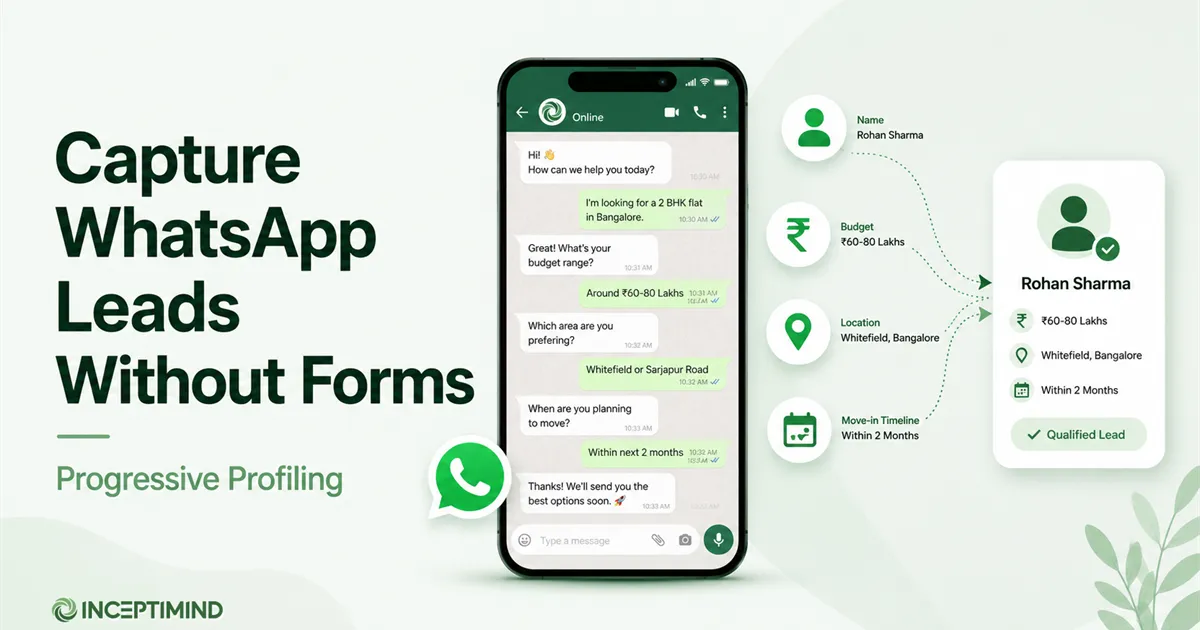
If you want the chat to go on and collect a name, a requirement and a callback time, you need a flow behind the number. The guide to WhatsApp lead capture without forms covers that.
What Breaks a WhatsApp Button After You Paste It
Usually the button works the first time you paste it. When it doesn’t, it’s almost always one of these.
The number is in the wrong format. wa.me/+91 98XXX XXXXX won’t work, and neither will wa.me/098XXXXXXXX. The address wants digits only: the country code, then the number.
Something else already lives in that corner. Cookie banners, “back to top” arrows and other chat widgets all compete for the bottom-right. If your bubble is hidden, or sitting on top of something, change bottom:20px to bottom:90px. You can also move it to the left by swapping right:20px for left:20px.
It covers a button on mobile. Open your cart and checkout on a phone and look. If the bubble is sitting over “Place order” or a sticky “Add to cart” bar, raise it, or leave it off those pages altogether.
It was pasted into a framed embed. This is the Wix and Google Sites problem from earlier. The bubble shows up inside a little box in the middle of the page when it should be in the corner of the screen. The fix is the platform’s site-wide custom code setting.
The message was typed with raw spaces or symbols. Type an & or a # straight into the link and the message gets cut off right there. Encode the message, or let a generator do it for you. You’ll hit this fastest with Hindi, Tamil and other scripts, and with emoji.
The link opens in the same tab. Leave out target="_blank" and a desktop visitor is taken away from your site to WhatsApp Web, and some won’t come back.
The bubble was hidden on desktop. You’ll see advice to show WhatsApp only on phones. We’d ignore it. The link works fine on a computer, and plenty of people do their serious comparing at a desk.
Pasted Code or a Chat Widget
Some third-party WhatsApp widgets are good, and sometimes one really is the right call. You should just know what comes with it.
A widget is a script that loads from another company’s server each time one of your pages opens. That’s how it can offer extras like a greeting pop-up, business hours or a choice of departments. It also comes with some costs:
- Every page makes an extra request to a server you don’t control. The pasted bubble gives the browser nothing more to fetch.
- The widget company sees your traffic, because its script runs on every page view, including for visitors who never tap it.
- The free plan usually puts a “powered by” link under your bubble, which goes away when you start paying monthly.
- If the provider changes its plans or closes, your bubble goes with it, and you may not notice for a while.
The pasted link has none of these costs, because WhatsApp is the only thing it depends on. So pick a widget when you need something only a widget does, like sending visitors to different numbers by department. If you have one number and a clear message, the link will do, and your pages stay lighter.
Get the code with your number already in it.
Type your number, write the message your visitors should start with, and open the Website tab. Copy the button, the floating bubble or a Markdown link, change the label to suit the page, and paste. It runs in your browser, nothing is uploaded, and there's no account or watermark. Built by the team behind Inceptimind Chat and free to use on its own.
Open the WhatsApp link generatorA Ten-Minute Test Before You Tell Anyone
Do this once, right after pasting. It catches nearly every problem in the list above.
- Tap it on your own phone. WhatsApp should open on your business number with the message sitting in the box. Go ahead and send it, so you see what your team will see.
- Click it on a laptop. You should get a new tab with WhatsApp Web and the same message.
- Open the site in a private window. That’s how a first-time visitor sees it, cookie banner and all. Make sure the bubble is visible and isn’t overlapping anything.
- Go through five pages on a phone. Home, a product or service page, the cart, the checkout and contact. You’re looking for the bubble covering something a thumb needs to reach.
- Read the message as if you were the customer. If you’d change it before sending, change it now.
- Get someone else to try it. Ideally a person who has never saved your number, since every new customer starts from there. It takes them thirty seconds.
What the First Two Weeks Will Tell You
You can get all of this by scrolling back through the chats.
- See which page’s message shows up most. If it’s the pricing page, people have questions your pricing page isn’t answering. Look at what they ask next and put those answers on the page.
- Note the questions that keep coming back. Expect a handful of them to turn up again and again. Each one is either a line missing from your site or a saved reply you haven’t written yet.
- Keep an eye on how many messages land after closing time. Someone who writes at 10 pm and hears back at 10 am may well have bought elsewhere by then.
- Count the orders, bookings or visits that started with a website message. A rough tally by hand will show whether the people who message go on to buy.
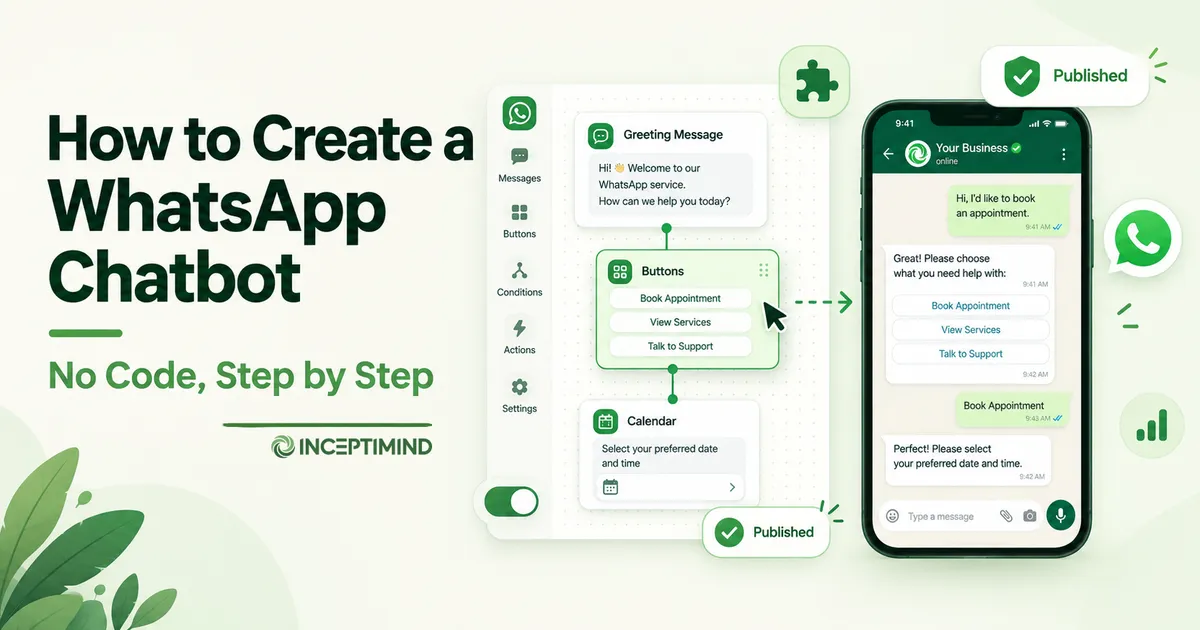
If a lot of messages arrive after hours, or the same questions are eating your day, a bot starts to make sense. Inceptimind Chat can reply to the first message within seconds, ask the one or two things you’d have asked anyway, and hand the conversation to a person with the answers attached. The guide on how to create a WhatsApp chatbot walks through the setup, and the complete guide to WhatsApp automation for business covers the wider picture. Either way, the button on your site stays as it is.
Start With One Page
Begin with the page where visitors most often leave without doing anything, which for most sites is pricing, a top product or the contact page. Put one inline button there with a message written for that page, and run the ten-minute test.
If chats start coming in, add the bubble across the site next week. The code for both is under the Website tab at walink.inceptimind.com.