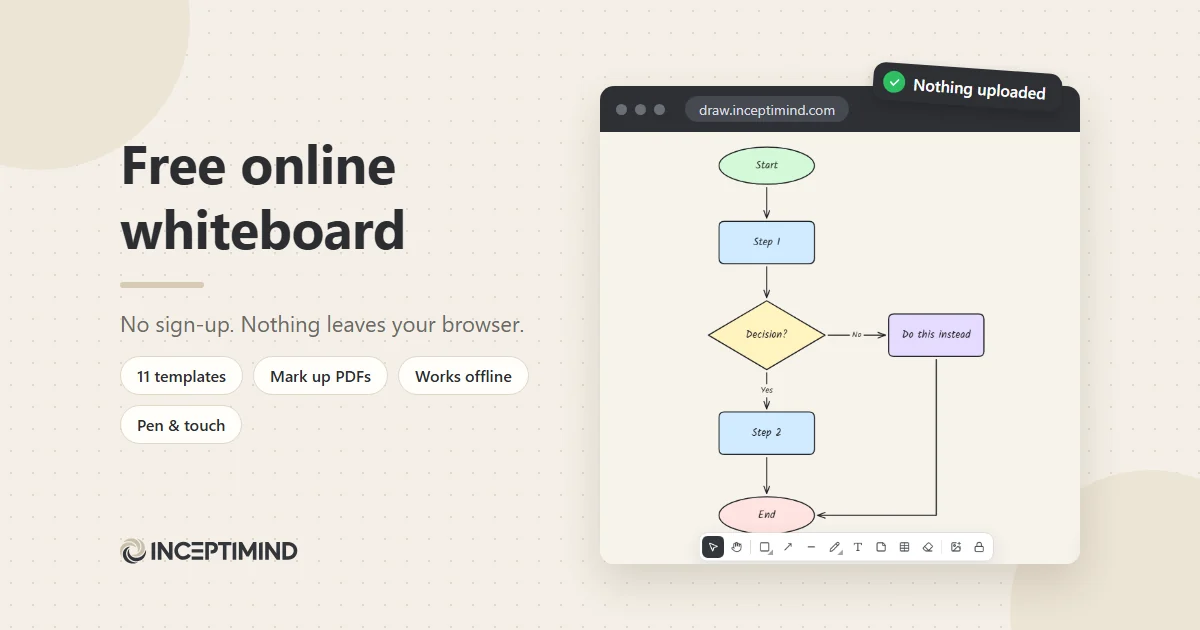
You have ten minutes before a call and you need to show how an approval should flow: request, manager check, finance check, then done or sent back. Four boxes and a few arrows will explain it faster than any list of bullet points.
So you search for “free online whiteboard”. The first result wants an email address, the second wants a team name and your colleagues’ addresses, and the one that finally lets you draw asks you to sign in before it will save anything. By the time you have a box on the screen, the call has started.
Then there is what the board contains. This one describes how your company approves spending. Others hold customer names, a product plan before it is announced, or a page of an agreement someone wants marked up, and a cloud whiteboard keeps a copy of each of them on its servers.
We built Draw for the way we actually sketch: open a tab, draw, close it, find it again tomorrow. It is free, it needs no account, and your boards never leave your browser. It is also the wrong tool for some jobs, and those are listed further down.
What “Nothing Is Uploaded” Means Here
Most online whiteboards keep your boards on their servers. That is how they let you open a board on another device or edit with a colleague live. It also means a copy of every board sits on a disk you do not control, under terms that can change.
Draw keeps them on your device instead:
- Boards are saved in your browser. Every change is written to the browser’s own database on your device within half a second. There is no server copy to sync.
- The page cannot send anything out. Draw ships a Content Security Policy with
connect-src 'self'. The browser enforces it: the page, including its own scripts, cannot make a request to any other site. There is no analytics script and no cookie. - Share links carry the board inside the link. The board is compressed into the part of the URL after
#, which browsers never send to a server. Whoever opens the link gets their own copy.
You can check this yourself. Open your browser’s developer tools, go to the Network tab and draw something. After the page has loaded, nothing is sent, whatever you draw.
The cost of this is that your boards live on the device you made them on. To move them, save a .draw file or use Back up all boards, which downloads every board in one file.
Your First Diagram in Two Minutes
Here is the approval flow, drawn in Draw.
- Open draw.inceptimind.com. A board is ready; there is nothing to set up.
- Press the + next to the board tabs and choose From template…, then Flowchart. It opens as a new board with a start, steps, a decision and an end, already joined up.
- Double-click a box and type over its text. The box grows to fit.
- Need another step? Pick the rectangle (or press
R) and drag. As the edges line up with the boxes around it, thin pink lines show it has snapped into place. Hold Alt to place it freely. - Pick the arrow (
A) and drag from one box to another. The arrow attaches to both, and when you move a box later the arrow follows. - For tidy right angles, select the arrow and choose Path → Elbow. The arrow leaves and enters each box straight on and re-routes itself when a box moves.
Every action can be undone with Ctrl+Z (⌘Z on a Mac), and the board saves itself as you go. Shapes can look hand-drawn or clean; choose the style from the bar that appears beside the selection.
Beyond boxes and arrows, the same board holds:
- Sticky notes (
N) with the date they were made and a checklist count - Tables (
B) whose rows grow to fit their text; Tab moves between cells - Checklists you tick with one click, right on the board
- Formatted text with bold, colours, highlights, links and lists
- Code blocks with syntax colours, and formulas typed in LaTeX
- Images dropped or pasted onto the board
Eleven Templates to Start From
Starting from a blank page is the slow part. Draw includes eleven templates, each opened as a new board so nothing you already have changes:
- Planning: kanban board, weekly planner, project timeline
- Thinking: mind map, SWOT analysis, pros and cons
- Meetings: meeting notes, sprint retrospective
- Diagrams: flowchart, org chart, user journey
Every template is ordinary shapes, notes and text, so you change anything about it the same way you would on a blank board. A kanban board is three columns of sticky notes you drag between them. An org chart is boxes joined by right-angled arrows that stay attached when you move a person to another team.
Pages, PDFs and Printing
An endless canvas suits brainstorming. Meeting notes or a handout are better on paper-sized pages. In Page setup you switch a board to pages, pick A4, A3, Letter or a 16:9 slide, upright or sideways, and choose the paper: plain, ruled, squared, dotted or graph.
With pages, Print (Ctrl+P) prints each page at its own size as sharp vector output, Download PDF saves them as a PDF file, and Present shows the board one page at a time in full screen, like slides.
The same pages are how Draw marks up a PDF. Open a PDF from the menu, or drop it on the board, and it becomes a new board with one page per PDF page. Write on it, highlight a clause, circle a number, add a sticky note in the margin. Download PDF keeps the original pages, so their text stays selectable, and lays your markings on top. A signed agreement, a bank statement or a draft report never goes to someone else’s server to be annotated.
Got a PDF that needs a few circles and a margin note?
Drop it on a board, mark it up with a mouse, finger or pen, and download it again with the original pages intact. Or start from one of the eleven templates. The file never leaves your device, and there is no account to create first.
Open DrawPen, Touch and Handwriting
On a tablet or a touchscreen laptop, Draw works as a notebook:
- Pen, marker and highlighter, each with its own size. Highlighter strokes let the text underneath show through, the way a real highlighter does.
- An eraser that rubs out just the part of a stroke you pass over, or switches to removing whole items.
- Once Draw sees a stylus, your fingers move and zoom the board instead of drawing, so a resting palm does not leave marks. You can change this under “Finger” in the menu.
- A long press opens the same menu as a right-click.
On a phone the controls rearrange to fit the screen. It is fine for a quick sketch or ticking off a checklist; for real diagrams a larger screen is easier.
Find, History and Working Offline
These matter once a board is big or you depend on it.
Find on board (Ctrl+F) searches every piece of text: text boxes, labels in shapes and on arrows, sticky notes, table cells, lists and code. Each match is highlighted, and Enter jumps to the next one, zooming in if you were looking at the whole board from far away. Whole-word search understands Indian scripts as well as English.
Version history keeps earlier states of each board. A version is saved every ten minutes while you work, and you can save one by name before a big change, such as “Before the client call”. Open the history to see a preview of any version and how much has changed since. Restore puts the board back as a single step, and Ctrl+Z undoes the restore if you change your mind. Versions are kept in your browser, like the boards themselves.
Once you have opened Draw online, it also works with no network, whether you are on a flight or at a site with no signal. You can install it to your phone’s home screen or as an app on your computer from the browser’s menu. When we publish a new version, Draw shows a small “new version is ready” note with a Reload button. It never reloads in the middle of your work.
Hindi, Marathi and Other Indian Scripts
Many hand-drawn fonts cover only Latin letters, so Hindi typed on a sketchy board falls back to a plain system font and sits oddly next to the English. Draw’s hand-drawn font, Kalam, covers both English and Devanagari, so Hindi and Marathi notes look hand-written alongside English ones. Other Indian scripts, such as Tamil, Telugu, Kannada and Bengali, use the fonts on your device, and they wrap and edit correctly because the browser itself lays the text out.
Sharing Without a Server
Since there is no server, sharing works with links and files:
- Copy share link puts the whole board inside the link. Send it in a chat or an email; the other person opens their own copy. Links suit boards of shapes and text. Boards with images or a PDF are too large for a link, and Draw says so instead of cutting them short.
- Save to file writes a
.drawfile with the board, its images and any PDF. In Chrome and Edge on a computer, later changes keep saving to the same file. - Export PNG or SVG for a slide or a document, or Copy as PNG to paste straight into a chat. No watermark.
- Open an Excalidraw file and it becomes a Draw board, arrows and all.
When Another Tool Is the Better Choice
Pick something else when:
- Several people need to edit one board live. Draw has no real-time collaboration, by design: passing edits between people needs a server in the middle. Miro, FigJam and Excalidraw’s live sessions do this well.
- You need the same board on every device automatically. Draw boards stay on the device you made them on until you move a file yourself.
- Your team runs on one shared workspace with comments, permissions and an admin. That is what paid team whiteboards are for.
For a diagram you make yourself, notes on a PDF, a plan for the week or a sketch to explain an idea, Draw is quicker to start and keeps the work on your own device.
Five Checks Before a Whiteboard Gets Your Plans
Boards end up holding org charts with real names, launch plans and pages of contracts you are querying. Run these checks once, on Draw or anything else, and you will know what happens to that work.
- Draw something with the Network tab open. If requests keep firing as you draw, your board is being sent somewhere.
- Look for a Content Security Policy. View the page source and search for
connect-src. If it says'self', the browser itself enforces the no-upload promise. - Ask how sharing works. A short link that opens on the company’s site means they store your board. A long link with the board after the
#means they do not. - Check what happens without an account. If you cannot save, export or open a second board without signing in, the free plan is a trial.
- Find the export. If a whiteboard cannot give you a file or an image of your work, you cannot take that work anywhere else.
Before Your Next Call
Bookmark draw.inceptimind.com now, while you are not in a hurry. Then pick the one diagram you have been describing in words (the approval flow, the team chart or this week’s plan) and draw it from the matching template. If it takes longer than the call it was meant for, tell us what slowed you down.
If you work with data as well as diagrams, the free JSON viewer that never uploads your data follows the same rules. And if a diagram you are drawing is a customer conversation, the complete guide to WhatsApp automation for business and the step-by-step guide to creating a WhatsApp chatbot turn that flow into one that runs by itself.